Need Help? Read
Common Questions
How to Activate an eSIM
Activation is simple. Follow the steps below:
iPhone
1. Tap and hold the QR code, and select Add eSIM. Alternatively, you can use the Camera app to scan the QR code.
3. On the following screen, follow the prompts to install the new Data Plan. The default options are okay to accept.
4. Once the new Data Plan has been added, make sure that Data Roaming is set to ON in your phone's Settings.

Android
1. On the device where you want to install the eSIM data plan, open the Camera app.
2. Point the camera at the QR Code. Tap on the notification that appears, which should say Data Plan.
3. On the following screen, follow the prompts to install the new Data Plan. The default options are okay to accept.
4. Once the new Data Plan has been added, make sure that Data Roaming is set to ON in your phone's Settings.

There could be several reasons why you are unable to scan your QR code for your eSIM. Here are a few things you can try to resolve the issue.
Check if your phone is compatible with eSIM - Make sure your phone supports eSIM technology. Not all phones are eSIM compatible, it is important to check this first.
Check the QR code - Make sure that the QR code you are trying to scan is not damaged or distorted. If the code is not clear or legible, try scanning it again or obtaining a new code.
Adjust the lighting - Poor lighting conditions can affect the QR code scanner's ability to read the code correctly. Try adjusting the lighting in your room to ensure that the QR code is well-lit.
Move closer to the QR code - If you are too far away from the QR code, the scanner may not be able to read it. Move closer to the code and try scanning it again.
Restart your phone - If none of the above solutions work, try restarting your phone and attempting to scan the QR code again. This can often resolve issues with the phone's software.
If you continue to experience problems with scanning your QR code eSIM contact our support team.
How to check if your eSIM is activated on iPhone
Note that some models no longer support regular SIM cards — you can only use eSIMs on some models of iPhone 15. If this is the case, your carrier will set it up, and your primary provider's eSIM profile will show up. The instructions in this blog post are for secondary eSIMs.
You can have up to two active SIMs (either two eSIMs or one physical SIM and one eSIM) on your iPhone at the same time. To check if they're active:
1. Go to settings on your iPhone — tap the gear icon on our home screen

2. Scroll down and tap on “Cellular” (or “Mobile data or “Mobile service,” depending on your region.)3. Look at the “SIMs” section. Your main SIM card or eSIM will be shown as “Primary.”

4. Tap on the eSIM profile to see if the line is active. Toggle the switch next to “Turn on this line” if it’s turned off.

- You can also delete the eSIM from this screen when you have finished your travels

Didn't find your eSIM? Here's what to do
If you cannot find the eSIM information in the settings, it could be because you terminated the installation process too early. It could also be a software issue — like your iOS being outdated. Fear not, there are multiple things you can do to get your eSIM up and going:
See if your phone is locked. Some carriers may lock the phones they sell so that only their network is available. If that is the case, learn how to unlock the eSIM on your iPhone to use eSIM apps.
Update iOS. Go to “Settings” > “General” > “Software update” and make sure your iPhone is running the latest version of iOS.
Restart your iPhone. Sometimes, restarting a device can resolve simple software glitches. Turn off your iPhone and turn it back on.
Reinstall your eSIM. If you're using Saily, open the app and go through the setup process once again. Make sure you follow the instructions on the screen to the letter.
Contact support. If none of the above steps work, reach out to our support team for further assistance. If the problem is with your phone, you may need to talk to Apple’s support as well.
Provided the device that you are using support dual SIM with an eSIM and the device allows for many eSIMs to be installed.
It is possible to install two (or more) eSIMs each with the same, or different, bundles and use them at the same time. However, our eSIM data bundles are designed to achieve the exact same functionality all within one eSIM. This allows for those devices restricted to only a single eSIM to have the same benefits or for anyone to keep to just one nice and tidy eSIM.
For iOS devices
1. On your device, go into Settings and tap Cellular or Mobile Data.
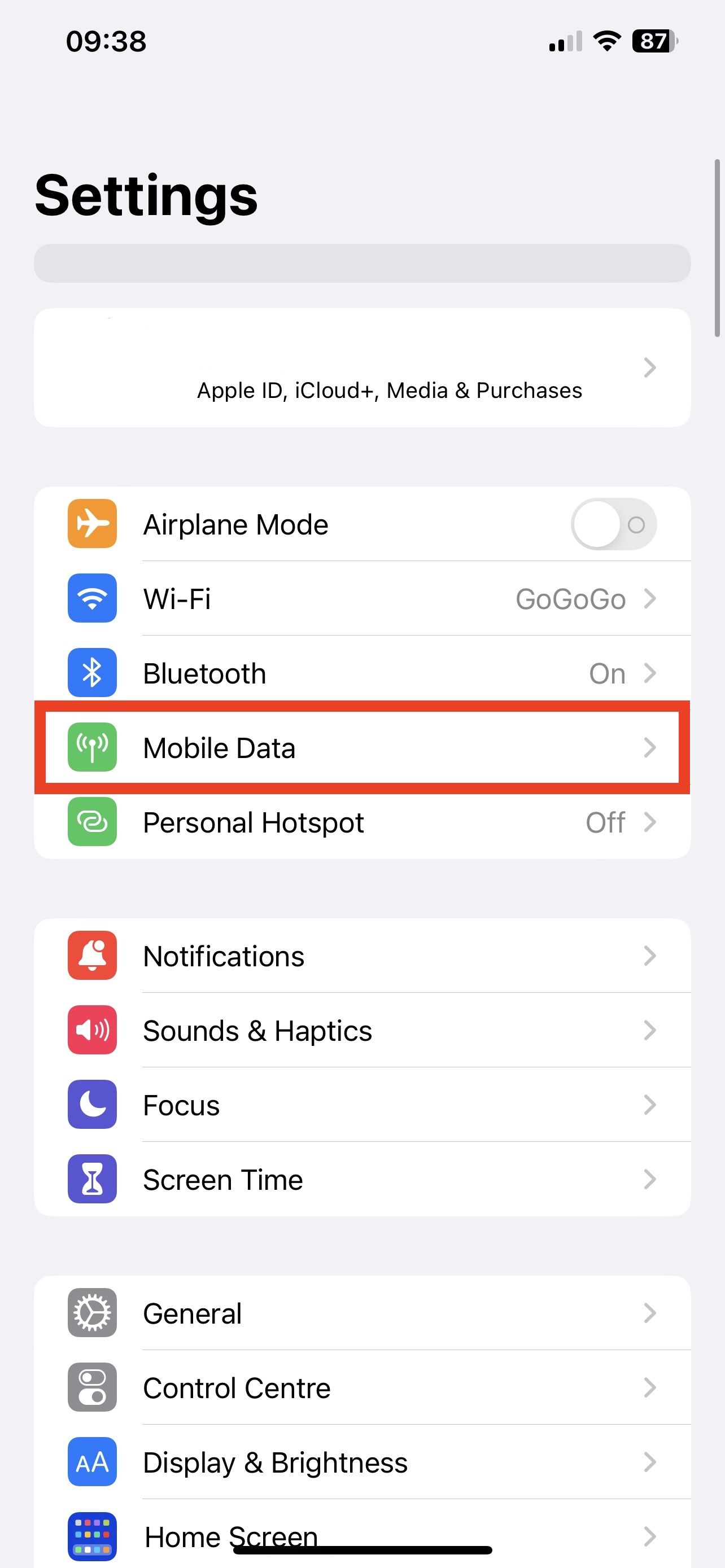
2. Click on the eSIM you would like to enable. Make sure Turn On This Line is turned on.
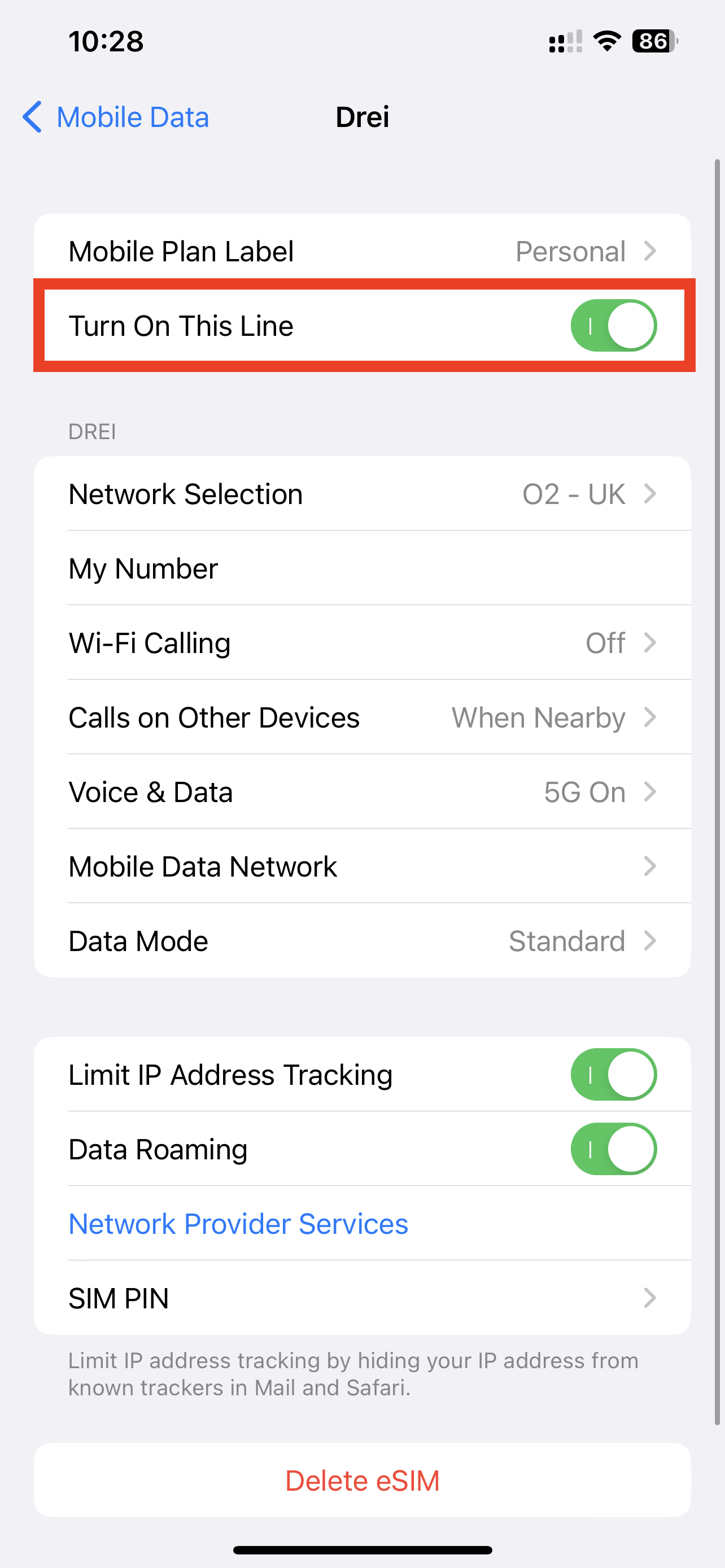
Once this is done, your desired eSIM will be enabled.
For Android devices
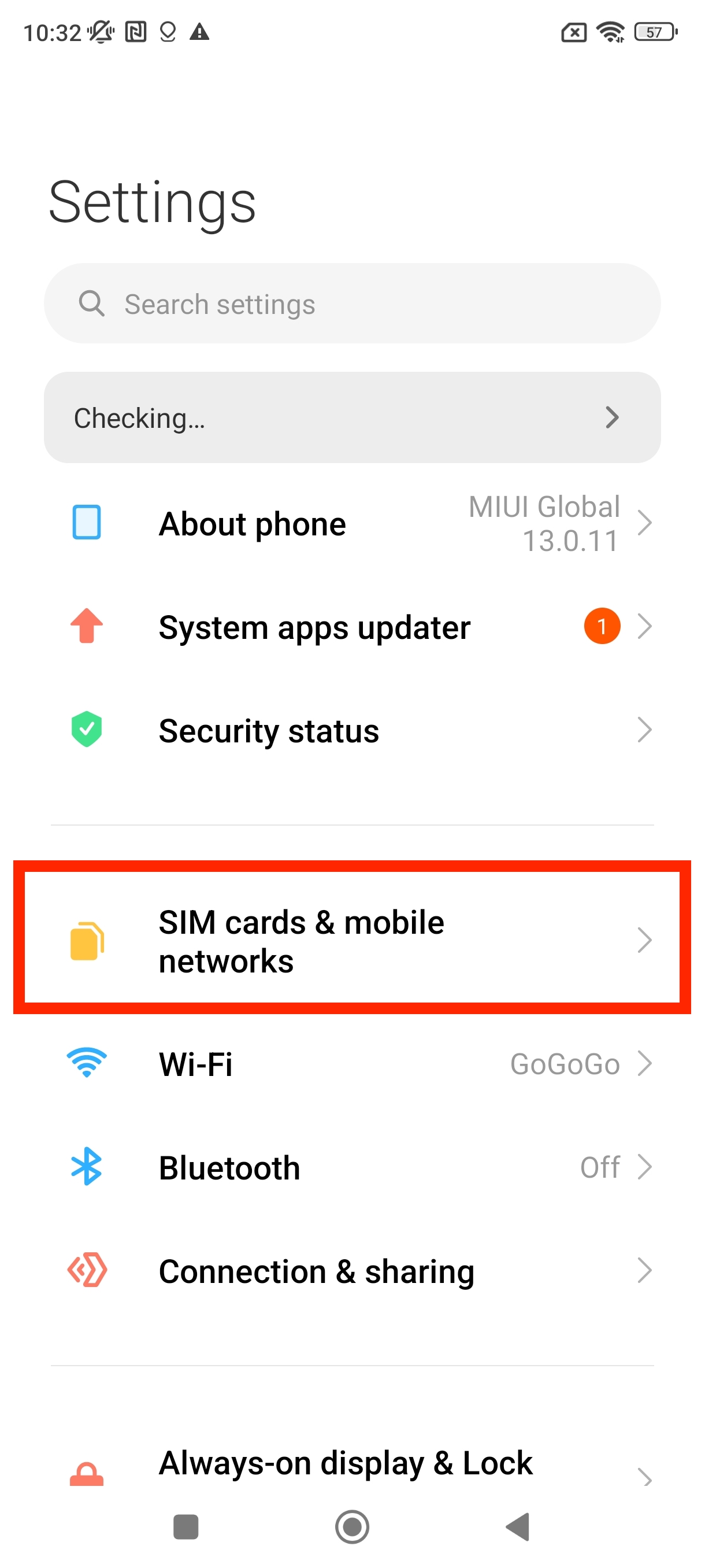
1. Go to Settings. Tap on SIM cards & mobile networks.
2. Scroll down until you see the option Manage eSIM.
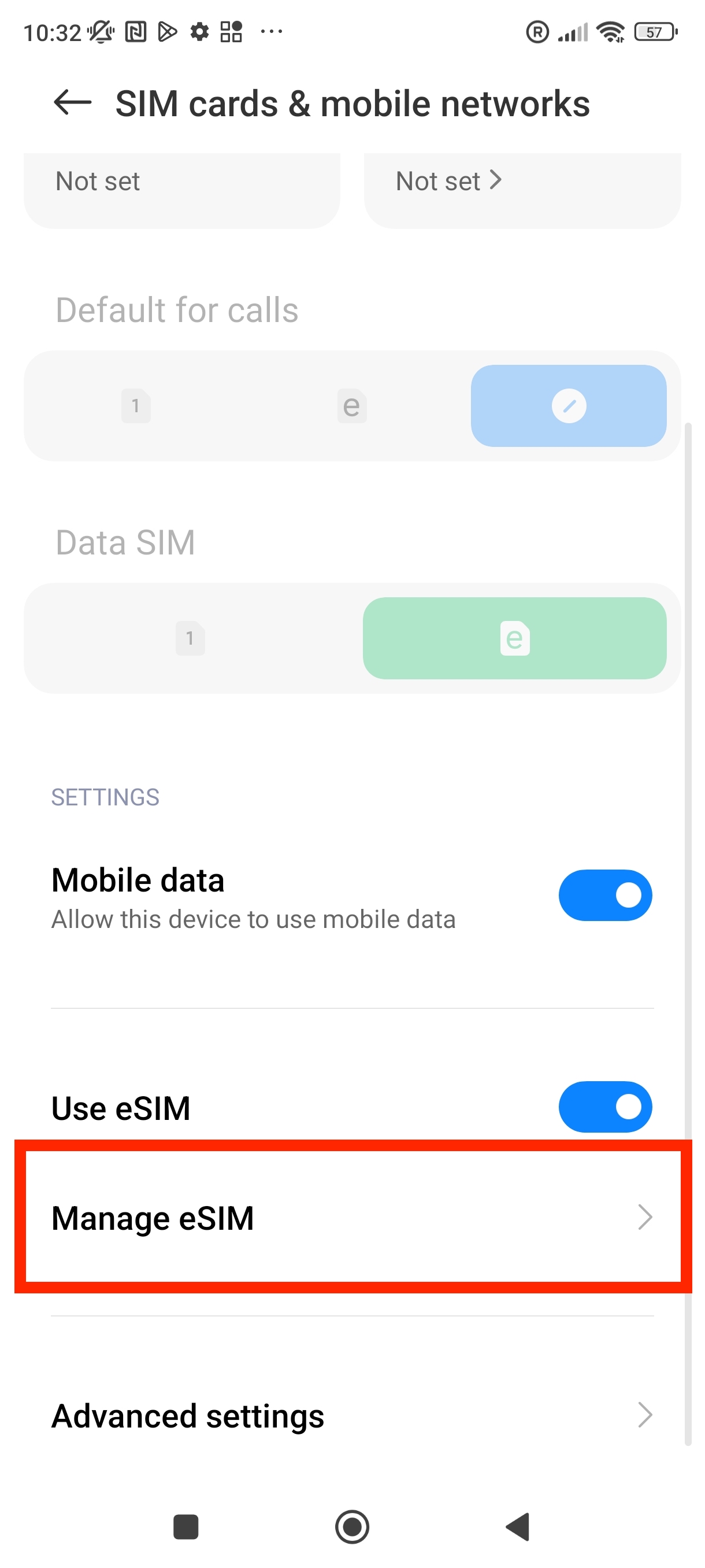
3. From here, make sure the desired eSIM is enabled. Enable the eSIM if it isn't already enable
Yes. You can use your home SIM card with your eSIM, provided that your device has dual SIM capabilities. Dual SIM devices allow you to use both a physical SIM card and an eSIM at the same time giving you the ability to use two different phone numbers or networks on a single device.
To use both a physical SIM card and an eSIM you will need to make sure that your device is compatible with dual SIM, specifically with an eSIM. You will also need to make sure that your device is set up to use both SIMs simultaneously.
Once you have both SIMs set up, you can choose which SIM to use for calls, messages, and data. You can also set a default SIM for each of these functions or choose to use them on a per-call or per-message basis.
It is worth noting that using both a physical SIM card and an eSIM can impact your device battery life and may also affect network performance, especially if both SIMs are being used heavily at the same time. Splitting data service onto an eSIM and retaining voice and SMS services from the primary SIM is very useful and saves a lot on data roaming charges.
There are a number of factors to consider around data use when using an eSIM. Typically, general habits including email, standard web browsing and social media can be considered quite light use.
Below are several items to consider to ensure that your data goes as far as it can.
Video Streaming
We recommend using a lower definition when watching streaming platforms as this will consume data at a slower rate. The majority of online streaming services will allow you to change the definition/quality of the image to a lower setting. Standard Definition (SD), for example, which is considered to be 480p, or some other equivalent.
Background Data Usage
To further reduce usage, consider the other background services working on your device. Operating system updates for devices can use large chunks of data without you knowing, so we recommend disabling automatic updates before using your mobile data.
Low Data Mode
We also recommend going into your settings and enabling "Low Data Mode" to help to reduce mobile data usage by pausing automatic updates and background tasks.
To do this on iPhone.
- Go into Settings.
- Mobile Data.
- Tap on the eSIM.
- Data Mode.
- Low Data Mode.
To do this on Android.
- Go into Settings.
- System apps updater.
- Tap on the 3 dots in top right corner.
- Settings.
- Auto updates.
- Set to Don't update.
Switching between multiple SIM profiles on a device that supports eSIM technology is typically very easy and can be done quickly with just a few taps on your device screen.
Once you have set up multiple eSIM profiles on your device you can switch between them by navigating to the device settings menu and selecting the eSIM profile you want to activate. The specific steps to switch between eSIM profiles may vary depending on your device and operating system, but in general, the process is straightforward and intuitive.
Switching between multiple eSIM profiles is generally easy and seamless and it can be done quickly and easily on devices that support eSIM technology.
You can remove an eSIM from your device at any time. The specific steps to do so may vary depending on your device and operating system. When removing the eSIM it will disable the data service that you receive through that eSIM. It is possible with an eSIM to reinstall it back to the same device.
Here are some general steps to remove an eSIM:
Open the settings app on your device.
Look for the Cellular or Mobile Data option and select it.
Find the eSIM you want to remove and select it.
Look for the option to remove or delete the eSIM, and follow the prompts to complete the process.